
How to Fix IPTV Audio Sync Issues: Fast Troubleshooting Tips
August 7, 2026•12 min read
There are few streaming frustrations more maddening than watching a character speak — and hearing their voice arrive a full second after their lips have moved. A penalty kick is scored, but the crowd roar detonates long after the net has bulged. The movie is gripping, yet every line of dialogue drifts in and out of sync like a badly dubbed foreign film. This is the infamous IPTV audio desync, and it ruins otherwise excellent viewing experiences.
The natural instinct is to blame the television, the soundbar, or the HDMI cable. Yet in almost every case, the root cause is not your hardware — it is a digital parsing error happening at the media player or stream encoding layer. The good news is that most audio sync problems can be resolved in under two minutes with the right diagnostic approach. This guide provides a fast, repeatable IPTV audio sync fix workflow that works across TiviMate, IPTV Smarters, VLC, and any Android-based streaming device.
The Root Causes of Audio Desynchronization
Before applying fixes, it helps to understand why sound and video separate in the first place. Three primary culprits account for the vast majority of voice sound delay streaming issues:
Hardware Decoding Bottlenecks (Software vs. Hardware)
Every streaming device — Firestick, Android TV box, Smart TV platform — contains two processing engines that can decode video data. Software decoding (SW) uses the main CPU to unpack and render every frame. It is more compatible but far less efficient. Hardware decoding (HW or HW+) offloads the work to the device's dedicated GPU or video processing unit, which is built specifically for this task. When a media player is set to SW mode and encounters a high-bitrate 4K stream with a complex audio codec like Dolby Digital Plus (E-AC-3) or AAC 5.1, the CPU cannot keep up. It starts dropping packets to maintain visual playback, and the audio track — processed on a separate pipeline — drifts out of alignment. Switching to HW or HW+ mode instantly reassigns the decoding workload to the GPU, which can handle both the video packets and the audio stream simultaneously without queue buildup.
Variable Bitrate (VBR) Drift
Not all IPTV streams are created equal. Budget providers often serve channels with unstable variable bitrate encoding, where the data rate fluctuates wildly depending on scene complexity. During a fast-paced action sequence, the bitrate spikes — and if the stream's container format (usually MPEG-TS or fragmented MP4) is poorly structured, the media player receives video and audio packets at uneven intervals. The player attempts to guess the correct frame timing gaps, but when the drift is severe enough, the audio permanently desynchronizes. This is why the same channel on a stable premium M3U sound format from a quality provider plays perfectly, while a budget equivalent drifts constantly.
Local Sound System Processing Latency
Modern audio setups introduce their own delays. Bluetooth headphones and speakers add 100–300 milliseconds of latency due to the wireless audio codec negotiation (SBC, AAC, aptX). Soundbars processing Dolby Atmos or DTS:X virtualization also introduce a small but cumulative processing lag. When this local latency combines with an already-marginal stream sync, the total delay becomes intolerable. Fortunately, this category of problem is the easiest to diagnose and fix — it responds perfectly to manual offset adjustment.
The Step-by-Step Fix Checklist
Work through these fixes in order. Each one addresses a specific layer of the audio pipeline, and you should test after every step before moving to the next.
1. Toggle Audio/Video Decoding Modes
This is the single most effective fix for IPTV audio sync problems on Android-based devices. Open your media player's settings and locate the decoder selection option:
- TiviMate: Settings → Playback → Decoder → Switch between HW, HW+, and SW. HW+ is generally best for modern devices (Firestick 4K Max, NVIDIA Shield, Chromecast with Google TV).
- IPTV Smarters: Settings → Player Settings → Decoding Method → Select Hardware or Hardware Overlay.
- VLC for Android: Settings → Input/Codecs → Hardware-accelerated decoding → Toggle between Automatic, Full, and Disabled.
After switching, reload the channel. If the audio snaps into sync instantly, the issue was a decoding bottleneck. If the problem persists at the same magnitude, move to step two.
2. Utilize Audio Delay/Offset Adjustments
Every quality IPTV player includes a manual audio offset slider that shifts the audio track forward or backward in millisecond increments. This is your precision tool when the sync offset is consistent across a single channel:
- TiviMate audio offset adjustment: While watching a channel, press down on the remote to open the playback controls, then click the clock icon (or long-select the audio icon). Use the slider to shift audio from -200ms (audio arrives too early) to +200ms (audio lags behind video). Adjust in 50ms increments until the match is perfect.
- IPTV Smarters: Open the player overlay, select the audio icon, and use the Sync Offset slider.
- VLC: During playback, tap the screen, then navigate to the audio icon → Audio Delay. Enter positive values if sound is ahead, negative if sound is behind.
Note that this adjustment is per-channel in most players. You may need different offsets for different channels depending on how the upstream source encodes each feed.
3. Clear App Cache and Force Stop
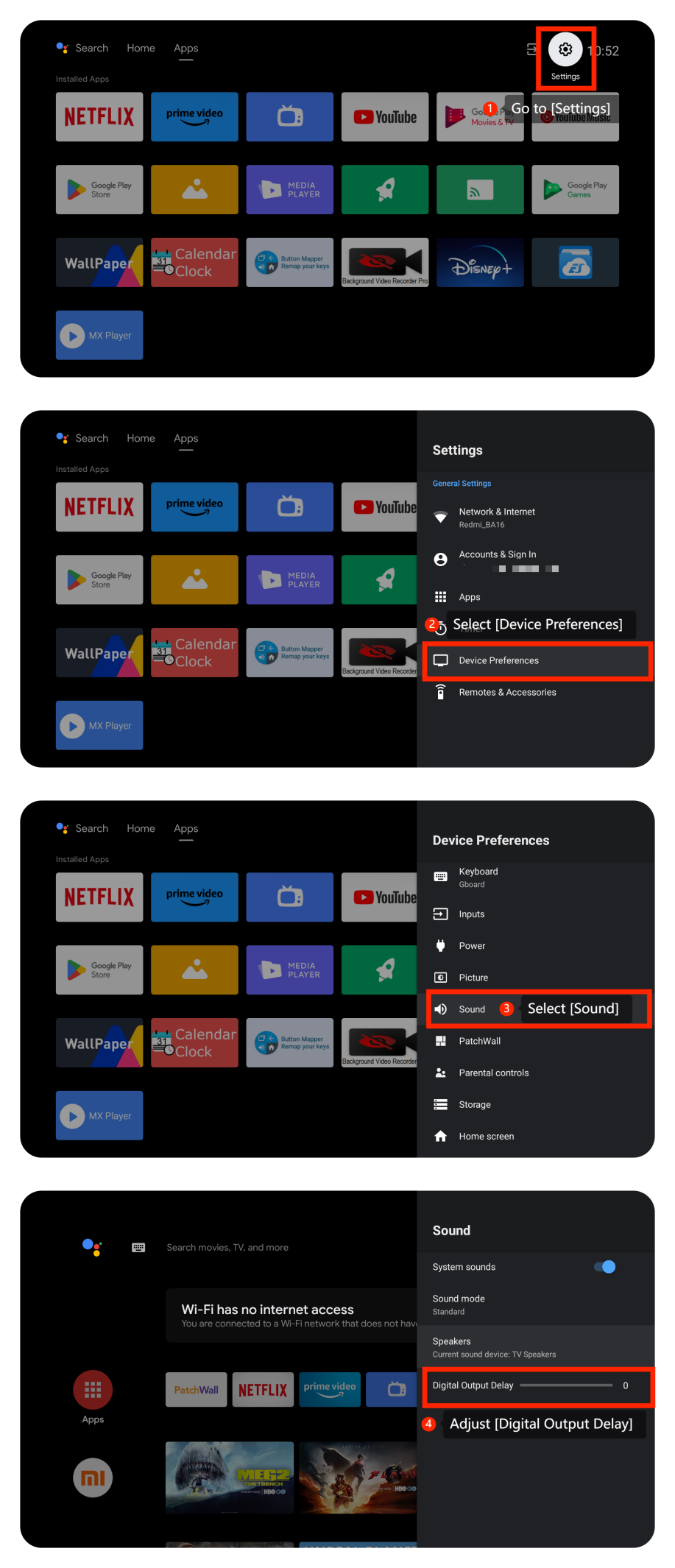
Streaming apps accumulate cached data over time — EPG images, channel logos, temporary stream buffers. When this cache bloat exceeds critical thresholds, the app's memory management degrades, causing audio processing threads to lag. This is especially common on Firesticks and low-storage Android TV boxes:
- Go to Settings → Applications → Manage Installed Applications → Select your IPTV player.
- Tap Force Stop to kill all background processes.
- Tap Clear Cache (never Clear Data — that erases your login and settings).
- Reboot the device for a full memory flush.
This fix resolves intermittent sync problems that worsen over a viewing session. If the sync is clean immediately after a fresh app launch but degrades after 30–60 minutes of watching, cache pressure is the likely cause.
4. Switch to an External Media Player Engine
Some IPTV apps have built-in players that handle audio less capably than dedicated playback engines. Both TiviMate and IPTV Smarters allow you to route channel playback through an external player like VLC, MX Player, or Just Player:
- TiviMate: Settings → Playback → Use External Player → Select VLC or MX Player.
- IPTV Smarters: Settings → Player Settings → External Player → Choose your preferred engine.
MX Player is particularly effective for problematic audio because it supports custom audio codec packs and offers its own per-playback sync adjustment. VLC is excellent for multi-channel audio downmixing (e.g., 5.1 to stereo) without introducing delay. Testing both will quickly reveal whether the original app's internal decoder was the weak link in your audio chain.
When Is It an Infrastructure Failure?
The fixes above address client-side issues. However, there are scenarios where no amount of player tuning can correct the desync because the problem originates at the server level. You should suspect upstream infrastructure failure when:
- Multiple channels are affected simultaneously — across different genres, bitrates, and source regions — with the same sync offset pattern.
- The desync is continuous and looping — audio drifts further apart over time rather than holding a stable offset, indicating the transcoder's frame-rate conversion is broken.
- Different devices on the same connection show identical behaviour — if your Firestick, phone, and PC all display the same sync delay on the same channel via different players, the source feed itself is misaligned.
In these cases, contact your provider's support team with specific channel names, timestamps, and device details. A well-engineered upstream platform will acknowledge the transcoder issue and resolve it within hours, not days. This is where the difference between a budget reseller and a genuine premium operator becomes stark — the latter monitors stream alignment proactively and corrects drift before viewers perceive it.
Never Tolerate Audio Desync Again
Our premium subscription platform is engineered with enterprise-grade transcoding infrastructure that maintains perfect audio/video synchronization across every channel. Combined with stable premium M3U sound format containers, multi-node anti-freeze load balancing, and professionally encoded 60 FPS sports streams, you get a viewing experience where audio and video arrive together — every time. Stop patching broken streams. Upgrade to infrastructure that works.
Key Takeaways
- Audio desync is almost always a media player or stream encoding issue, not a display hardware fault.
- Toggle hardware decoding audio options (HW/HW+) first — it resolves ~60% of all sync problems on Firestick and Android TV devices.
- Use TiviMate audio offset adjustment as a per-channel precision tool for consistent drift.
- Clear app cache regularly on low-storage devices to prevent progressive sync degradation.
- Route playback through an external player (VLC, MX Player) if the built-in decoder cannot handle complex audio codecs.
- If desync affects all channels and all devices simultaneously, the upstream server transcoder is failing — switch to a provider with professional infrastructure.
Tired of adjusting offset sliders on every channel? A truly stable premium M3U sound formatfrom a professionally engineered platform eliminates the root cause. Browse our subscription plans at [/products](/) and experience IPTV where the audio always matches the picture.
Related Articles
The Top 5 Features of a Premium IPTV Service: What to Look For
Discover the essential technical criteria that define elite-grade IPTV delivery.
Understanding IPTV Protocols: M3U vs Xtream Codes API Explained
Deep dive into how stream delivery formats affect playback stability and security.
Anti-Freeze Technology: How We Ensure Stable Streaming
The infrastructure behind buffer-free, perfectly synchronized IPTV playback.
How to Set Up IPTV on Smart TV: Step-by-Step Guide
Get your IPTV service configured correctly for optimal audio and video performance.