
How to Optimize Your Home Network for Live Streaming Protocols
Buffering, lag, and freezing are almost never your IPTV provider's fault — they are your network. Here is how to transform your home network into a streaming powerhouse.
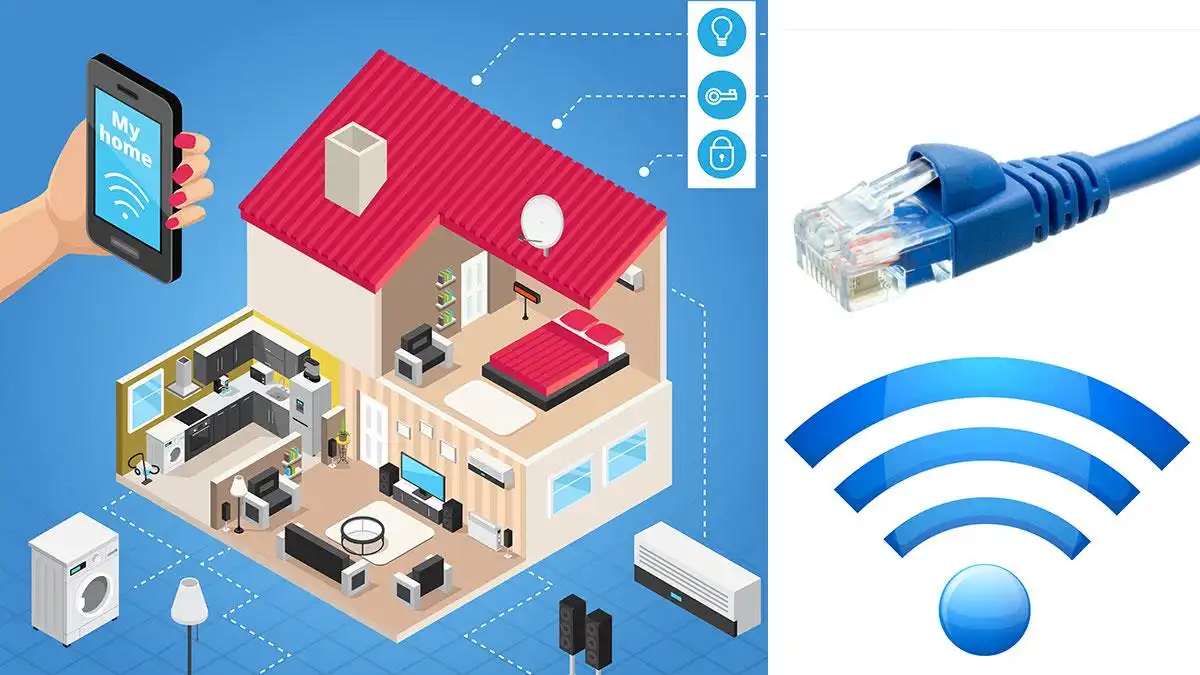
You signed up for a premium IPTV subscription. You have 90,000+ channels, 4K and 8K quality, a 7-day EPG, and 24/7 support. But when you sit down to watch the big match, the stream buffers. The video freezes. The audio desyncs. You blame the IPTV provider — but in 90% of cases, the problem is not the server. It is your home network.
Live IPTV streaming is one of the most demanding applications for a home network. Unlike Netflix or YouTube, which buffer minutes of content ahead, live IPTV streams are real-time. Every microsecond of latency, every dropped packet, every interference burst is visible immediately as buffering, pixelation, or freezing.
In this guide, you will learn exactly how to optimize your home network for live streaming protocols. We will cover everything from the physical cabling to advanced QoS settings, bufferbloat fixes, and streaming protocol fundamentals. By the end, your network will deliver smooth, buffer-free 4K/8K IPTV to every device in your home.
Understanding Live Streaming Protocols
Before optimizing your network, it helps to understand how IPTV actually delivers video to your screen. Different streaming protocols have different network requirements:
| Protocol | Transport | Latency | Bandwidth Usage | Network Sensitivity |
|---|---|---|---|---|
| HLS (HTTP Live Streaming) | TCP | 6-30 seconds | Moderate | Low — adapts well |
| MPEG-DASH | TCP | 6-20 seconds | Moderate | Low — adapts well |
| RTSP (Real-Time Streaming) | UDP/TCP | 1-3 seconds | Higher | High — UDP sensitive |
| RTMP (Real-Time Messaging) | TCP | 2-5 seconds | High | Moderate |
| WebRTC | UDP | 0.1-0.5 seconds | Variable | Very high — needs stable UDP |
| SRT (Secure Reliable Transport) | UDP with ARQ | 0.5-3 seconds | Efficient | Moderate — handles packet loss well |
Most modern IPTV services, including Smarter IPTV, use HLS orMPEG-DASH over HTTP. These are TCP-based protocols that include built-in adaptive bitrate streaming — they automatically adjust quality based on your connection. However, they are still sensitive to network issues like packet loss, high latency, and jitter.
Network Fundamentals: What Matters for Streaming
When it comes to live streaming, not all network metrics are equal. Here is what actually matters:
📶 Bandwidth
The amount of data your connection can carry per second. For 4K IPTV streaming, you need at least 25 Mbps per stream. For 8K, 50-100 Mbps. If multiple people stream simultaneously, multiply accordingly. A 200 Mbps connection is sufficient for most households. Bandwidth is rarely the bottleneck for IPTV — latency and jitter are.
⏱️ Latency (Ping)
The time it takes for a packet to travel from your device to the server and back. Measured in milliseconds. Under 20ms is excellent, 20-50ms is good, 50-100ms is acceptable, over 100ms causes noticeable delays. High latency does not cause buffering by itself — but combined with packet loss, it is devastating. Test withping google.com -t.
📊 Jitter
The variation in latency between packets. This is the #1 killer of IPTV quality. Even with good average latency, high jitter causes streams to buffer or freeze because packets arrive in bursts instead of a steady flow. Jitter should be under 5ms for smooth streaming. Use a jitter test tool or check ping -t output.
📦 Packet Loss
The percentage of data packets that never reach their destination. For TCP-based streaming (HLS/DASH), packet loss causes retransmissions, which increase latency and reduce throughput. For UDP-based streaming, packet loss causes visible artifacts, freezing, or dropouts. Packet loss should be 0%. Even 0.5% loss degrades streaming noticeably.
💡 Quick Network Health Check
Run this quick test before making any changes: Go to Speedtest.netor Fast.com and run a test. Take note of the latency, download speed, and upload speed. Then run Waveform's Bufferbloat Test orDSLReports Speed Test to check for bufferbloat — this is crucial for IPTV. A good result is an A or A+ rating. If you get C or below, you have bufferbloat that needs fixing.
Step 1: Fix Your Physical Network Infrastructure
Before touching any settings, start with the physical layer. Many network problems trace back to bad cables, poor connections, or weak Wi-Fi signals.
Ethernet is Always Better
If your IPTV device supports Ethernet, use it. Period. Ethernet provides consistent latency, zero interference, full bandwidth, and no jitter. Wi-Fi, even Wi-Fi 6/6E, introduces variable latency and is susceptible to interference from neighbors, microwaves, Bluetooth devices, and physical obstacles.
| Cable Type | Max Speed | Max Distance | Recommended For |
|---|---|---|---|
| Cat5e | 1 Gbps | 100m | Basic IPTV (HD/4K) |
| Cat6 | 10 Gbps (55m) | 100m | 4K/8K IPTV, multiple streams |
| Cat6a | 10 Gbps | 100m | Future-proof, high-end setups |
| Cat7 / Cat8 | 25-40 Gbps | 30-100m | Overkill for home IPTV |
Recommendation: Run Cat6a cables to your main streaming devices (TV, media center, streaming box). Cat6a is shielded, handles 10 Gbps at full 100m distance, and is future-proof for years. For shorter runs under 55m, standard Cat6 is sufficient.
When Wi-Fi is Unavoidable
If you must use Wi-Fi, here is how to optimize it for IPTV:
Step 2: Defeat Bufferbloat
Bufferbloat is the single most common cause of IPTV buffering that users mistake for provider issues. Here is what happens:
When you download a large file, watch a video, or have a background update running, your router's buffer fills up with data packets. While the buffer is full, your router cannot process time-sensitive packets (like IPTV stream data) quickly. The result: your stream buffers even though you have plenty of bandwidth.

How to Test for Bufferbloat
Run the DSLReports Speed Test or Waveform Bufferbloat Test. Both tests measure your latency while downloading and uploading simultaneously. A result of A or A+ means no bufferbloat.B or C means mild bufferbloat. D or F means severe bufferbloat that will cause regular IPTV buffering.
How to Fix Bufferbloat
The fix is Smart Queue Management (SQM) or Quality of Service (QoS) on your router. SQM actively manages your bandwidth to prevent bufferbloat. If your current router does not support SQM, installOpenWrt or DD-WRT firmware, or buy a router that supports fq_codel or CAKE (Common Applications Kept Enhanced) queuing disciplines. The IQrouter orUbiquiti EdgeRouter are excellent choices with built-in SQM.
QoS Configuration for IPTV
Set your QoS rules to prioritize UDP/TCP ports used by your IPTV service, or prioritize traffic to/from your IPTV device by MAC address. Give IPTV traffic the highest priority, followed by video conferencing (Zoom, Teams), then general web browsing, and finally background tasks (updates, backups, torrents). Limit background traffic to 20% of your total bandwidth.
Bandwidth Limiting
Set your QoS bandwidth limits to 90-95% of your actual measured speed, not 100%. For example, if you pay for 200 Mbps and get 180 Mbps measured, set the QoS limit to 170 Mbps. This headroom allows the router to manage traffic effectively instead of letting buffers fill up.
Step 3: Optimize Your Router Configuration
Your router is the command center of your home network. Getting its settings right can make the difference between flawless 4K streaming and constant buffering:
Enable Hardware Acceleration
Most modern routers have hardware NAT acceleration or hardware offloading. Enable this in your router settings (often called "NAT Acceleration", "Hardware Offload", or "CTF"). This offloads packet processing to dedicated hardware, reducing CPU load and improving throughput. Without it, routing performance can drop by 50% or more.
Disable Unnecessary Features
Disable features you do not use: SPI firewall (double-check your security needs first), IPv6 (if your ISP does not support it well), parental controls, traffic monitoring, and VPN services (unless actively using them). Each enabled feature adds processing overhead that can increase latency. Keep it lean for the best streaming performance.
Update Router Firmware
This seems obvious but is frequently overlooked. Router manufacturers regularly release firmware updates that fix performance bugs, improve QoS algorithms, and patch security vulnerabilities. Check your router admin panel for updates. If your router is more than 3 years old and no longer receiving updates, consider installing OpenWrt or replacing it.
Configure DNS Properly
Your ISP's DNS servers are often slow and unreliable. Switch to Cloudflare DNS (1.1.1.1 / 1.0.0.1) or Google DNS (8.8.8.8 / 8.8.4.4). Better DNS resolution means faster connection establishment to IPTV servers. Cloudflare DNS is generally the fastest globally. Set this in your router's WAN/Internet settings.
MTU Size Adjustment
Maximum Transmission Unit (MTU) determines the largest packet size your network can handle. The standard Ethernet MTU is 1500 bytes, but some ISPs use lower values (1492 for PPPoE, 1472 for some VPNs). If packets are too large, they fragment, causing increased latency and overhead. Test with ping -f -l 1472 google.com(Windows) and reduce until no fragmentation occurs. Set that value + 28 as your router MTU.
Step 4: Advanced Network Optimizations
VLAN Segmentation for Streaming
If you have a managed switch or a router that supports VLANs, create a dedicatedStreaming VLAN. Put all your streaming devices (IPTV boxes, Smart TVs, media centers) on this VLAN. Apply aggressive QoS policies to this VLAN, prioritizing its traffic above all others. This prevents a family member's laptop downloading a large update from affecting your 4K stream.
Network Switches: Managed vs Unmanaged
If you have multiple wired devices, you need a switch. For streaming, aGigabit managed switch with QoS capabilities is ideal. Managed switches allow you to prioritize traffic by port — for example, give the port connected to your IPTV box the highest priority. Unmanaged switches work but offer no traffic control.
| Feature | Unmanaged Switch | Managed Switch |
|---|---|---|
| Price | $15-40 | $40-150 |
| Traffic Prioritization | No | Yes (port-based, 802.1p) |
| VLAN Support | No | Yes |
| Bandwidth Monitoring | No | Yes |
| Loop Protection | No | Yes (STP) |
| IPTV Recommendation | Adequate for 1-2 streams | Best for 2+ streams |
Powerline and MoCA Alternatives
If you cannot run Ethernet and Wi-Fi is unreliable, consider these alternatives:
Step 5: Choose the Right Router for IPTV Streaming
Not all routers are created equal. Some handle streaming traffic much better than others. Here are the top recommendations for IPTV in 2026:
🏆 ASUS RT-AX86U Pro
Excellent QoS with Adaptive QoS and traditional QoS. Supports OpenWrt. Dual-band Wi-Fi 6 with 4x4 antennas. Broadcom chipset with hardware NAT acceleration. The best consumer router for IPTV under $250.
🏆 TP-Link Archer AXE75
Wi-Fi 6E (6 GHz band) for interference-free streaming. Affordable at $150-200. Supports OpenWrt. Good QoS with bandwidth limiter. Perfect for homes with congested 5 GHz bands.
🏆 Ubiquiti Dream Machine Pro
Enterprise-grade routing with built-in SQM/CAKE. IDS/IPS without performance hit. Excellent for large homes or users who want full control. Supports VLANs for streaming segmentation.
🏆 MikroTik hAP ax³
RouterOS gives granular control over QoS, queues, and traffic shaping. Supports fq_codel and CAKE. Steep learning curve but unmatched performance. Best for networking enthusiasts who want to optimize every parameter.
IPTV-Specific Network Tips
Beyond general network optimization, here are tips specifically for IPTV streaming with Smarter IPTV:
🌍 Choose the Right Server
Smarter IPTV provides multiple server endpoints across different regions. Select the server geographically closest to you for the lowest latency. If you experience buffering on one server, try another — different ISPs route traffic differently, and one server may have a better path to your network.
📡 Use the Right Streaming Protocol
If your IPTV app supports multiple protocols (HLS, RTSP, MPEG-TS), experiment with each. HLS over HTTP/TCP is generally the most reliable for congested networks. RTSP may offer lower latency but is more sensitive to network issues. Smarter IPTV optimizes streams for HLS by default.
🎯 Dedicated Streaming Device
Use a dedicated device for IPTV streaming. A Raspberry Pi running LibreELEC, an Android TV box, or a dedicated streaming stick. Avoid streaming IPTV on a general laptop that also runs downloads, updates, and background apps — these compete for network and system resources.
🔌 Check Your Modem
If you use a modem-router combo from your ISP, it is likely the weak link. ISP equipment is built for basic functionality, not streaming performance. Put the ISP modem in bridge mode and use your own router. This single change fixes many streaming issues immediately.
📊 Monitor Network in Real-Time
Use tools like PingPlotter or WinMTR to monitor latency and packet loss to your IPTV server in real-time. Run a continuous ping while watching a stream. When buffering occurs, check if the ping spiked or packets dropped. This tells you whether the problem is your network or the server.
Troubleshooting Common Streaming Problems
❓ Stream Buffers Every 30-60 Seconds
Likely cause: Bufferbloat. Run the DSLReports bufferbloat test. If you get C or below, enable SQM/QoS on your router. This is the most common fix for periodic buffering. Also check that no background downloads or cloud backups are running during streaming.
❓ Video Freezes But Audio Continues
Likely cause: Packet loss. Check your Ethernet cable connections — a loose or damaged cable causes intermittent packet loss. For Wi-Fi, check for interference from neighbors or household appliances. Run ping -t your-serverand look for "Request timed out" messages.
❓ Poor Quality on One Device, Fine on Others
Likely cause: Device-level issue, not network. Check that the device has a Gigabit Ethernet port (some older Smart TVs have only 100 Mbps Ethernet, which is insufficient for 4K IPTV). For Wi-Fi devices, check signal strength and band (ensure it is on 5 GHz, not 2.4 GHz).
❓ Streaming Works Fine During Day, Buffers at Night
Likely cause: ISP congestion or local network congestion. During peak hours (7-11 PM), your ISP's network may be overloaded. Check with neighbors who use the same ISP. Locally, family members streaming, gaming, or video calling simultaneously can saturate your connection. QoS settings help here.
❓ Channels Load Slowly or Time Out
Likely cause: DNS issues. Slow DNS resolution delays the connection to IPTV servers. Switch to Cloudflare DNS (1.1.1.1) or Google DNS (8.8.8.8) in your router settings. Also check that your IPTV app has the latest version — outdated apps may have connection bugs.
Bandwidth Requirements by Streaming Quality
Here is how much bandwidth you actually need for smooth IPTV streaming:
| Quality | Resolution | Min Bandwidth | Recommended | Latency Needed |
|---|---|---|---|---|
| SD | 480p | 3 Mbps | 5 Mbps | < 100ms |
| HD | 720p/1080p | 8 Mbps | 15 Mbps | < 50ms |
| Full HD | 1080p | 12 Mbps | 20 Mbps | < 40ms |
| 4K UHD | 2160p | 25 Mbps | 50 Mbps | < 20ms |
| 8K UHD | 4320p | 50 Mbps | 100 Mbps | < 10ms |
| Important: These are per-stream requirements. If 3 people stream 4K simultaneously, you need 75+ Mbps available. Always add 30% headroom to your total bandwidth for overhead and background traffic. | ||||
Frequently Asked Questions
❓ How much bandwidth do I need for IPTV?
For a single 4K stream, a minimum of 25 Mbps is required. For households with multiple simultaneous streams, aim for at least 100 Mbps total. However, bandwidth alone does not guarantee quality — low latency, low jitter, and zero packet loss are equally important for live streaming.
❓ Is Wi-Fi OK for IPTV or do I need Ethernet?
Ethernet is always better. If Wi-Fi is your only option, use Wi-Fi 6 or 6E on the 5 GHz or 6 GHz band. Ensure strong signal (RSSI above -60 dBm). Avoid 2.4 GHz entirely for streaming. Mesh systems with wired backhaul help. Even then, wired Ethernet will always provide more consistent performance.
❓ What is bufferbloat and how do I fix it?
Bufferbloat is excessive buffering in your router that causes latency spikes when the connection is fully utilized. Fix it by enabling Smart Queue Management (SQM) or Quality of Service (QoS) with fq_codel or CAKE on your router. Set bandwidth limits to 90-95% of your actual speed. This is the single most impactful optimization you can make.
❓ Should I use a VPN for IPTV streaming?
With a legal IPTV provider like Smarter IPTV, a VPN is optional. If you use one, choose a VPN with WireGuard protocol (lower overhead than OpenVPN) and ensure your router can handle the throughput. A VPN adds 5-15% overhead and may increase latency. If you do not need a VPN for privacy reasons, streaming without one gives the best performance.
❓ Does a better router improve IPTV streaming?
Absolutely. A good router with proper QoS/SQM, hardware NAT acceleration, and Wi-Fi 6/6E makes a significant difference. The router is the traffic controller of your network — a cheap or outdated router causes latency, bufferbloat, and dropped packets. Invest in a quality router for the best streaming experience.
❓ Can Powerline adapters handle 4K IPTV?
Powerline adapters can work for HD streaming but are unreliable for 4K IPTV. Their real-world performance depends heavily on your home's electrical wiring, and they are susceptible to interference from appliances. MoCA (over coaxial cable) is a much better alternative. Ethernet is always the gold standard.
❓ How do I check if my ISP is throttling IPTV?
Run a speed test and compare the result to your plan. Then run the same test with a VPN enabled. If your speed is significantly higher with a VPN, your ISP may be throttling streaming traffic. Alternatively, use Wehe orM-Lab to detect throttling. In many countries, ISPs actively throttle IPTV traffic during peak hours.
❓ What is jitter and why does it matter for IPTV?
Jitter is the variation in packet arrival time. For live streaming, low average latency means nothing if jitter is high — your stream will freeze or skip as packets arrive in bursts. Jitter under 5ms is ideal, under 10ms is acceptable. Wi-Fi and bufferbloat are the most common causes of high jitter.
❓ How do I set up QoS for IPTV on my router?
Access your router admin panel (usually 192.168.1.1 or 192.168.0.1). Find QoS, Traffic Shaping, or Bandwidth Control settings. Enable QoS, set your actual upload and download speeds at 90-95% of measured values. Prioritize your IPTV device by MAC address or the IPTV service by specific ports (contact your provider for port numbers). Save and reboot.
Conclusion: A Stream-Optimized Network Changes Everything
A premium IPTV subscription like Smarter IPTV is only as good as the network it runs on. You can have the best server infrastructure in the world — 90,000+ channels, 4K/8K quality, 99.9% uptime — but if your home network is not optimized, you will still experience buffering, freezing, and frustration.
The good news is that most network problems are fixable. You do not need to be a network engineer to make meaningful improvements. Start with the basics: use wired Ethernet wherever possible, run a bufferbloat test, and enable QoS on your router. These three steps alone eliminate 80% of streaming issues.
If you want the absolute best streaming experience, go further: upgrade to a quality router with proper SQM, use Cat6a cabling, add a managed switch for traffic prioritization, and create a dedicated streaming VLAN. Your 4K/8K IPTV will stream flawlessly, even with multiple simultaneous users.
Ready to put that optimized network to use? Smarter IPTV delivers 90,000+ live channels, 110,000+ movies and series in VOD, 4K and 8K quality, and a 7-day EPG that works perfectly with your newly optimized setup. Try it free for 24 hours and experience what your network can really do.
Experience Buffer-Free IPTV on Your Optimized Network
90,000+ channels, 4K/8K quality, 24/7 support — test your optimized network with a free 24-hour trial of Smarter IPTV.
Stop blaming your IPTV provider. Fix your network, unlock the full potential of your connection, and enjoy the streaming experience you paid for.