
The Ultimate Guide to IPTV for Firestick: Setup & Optimization
The Amazon Firestick has become the most popular streaming device in the world for one simple reason: it delivers extraordinary value. For under fifty dollars, you get a compact, portable device running a customized Android operating system that transforms any television into a smart entertainment hub. But the Firestick has a limitation. The Amazon Appstore restricts access to many powerful third-party media players. This guide is the definitive blueprint for unlocking your Firestick's hidden potential and setting up iptv for firestick the right way. Browse our product catalog for compatible accessories and plans.
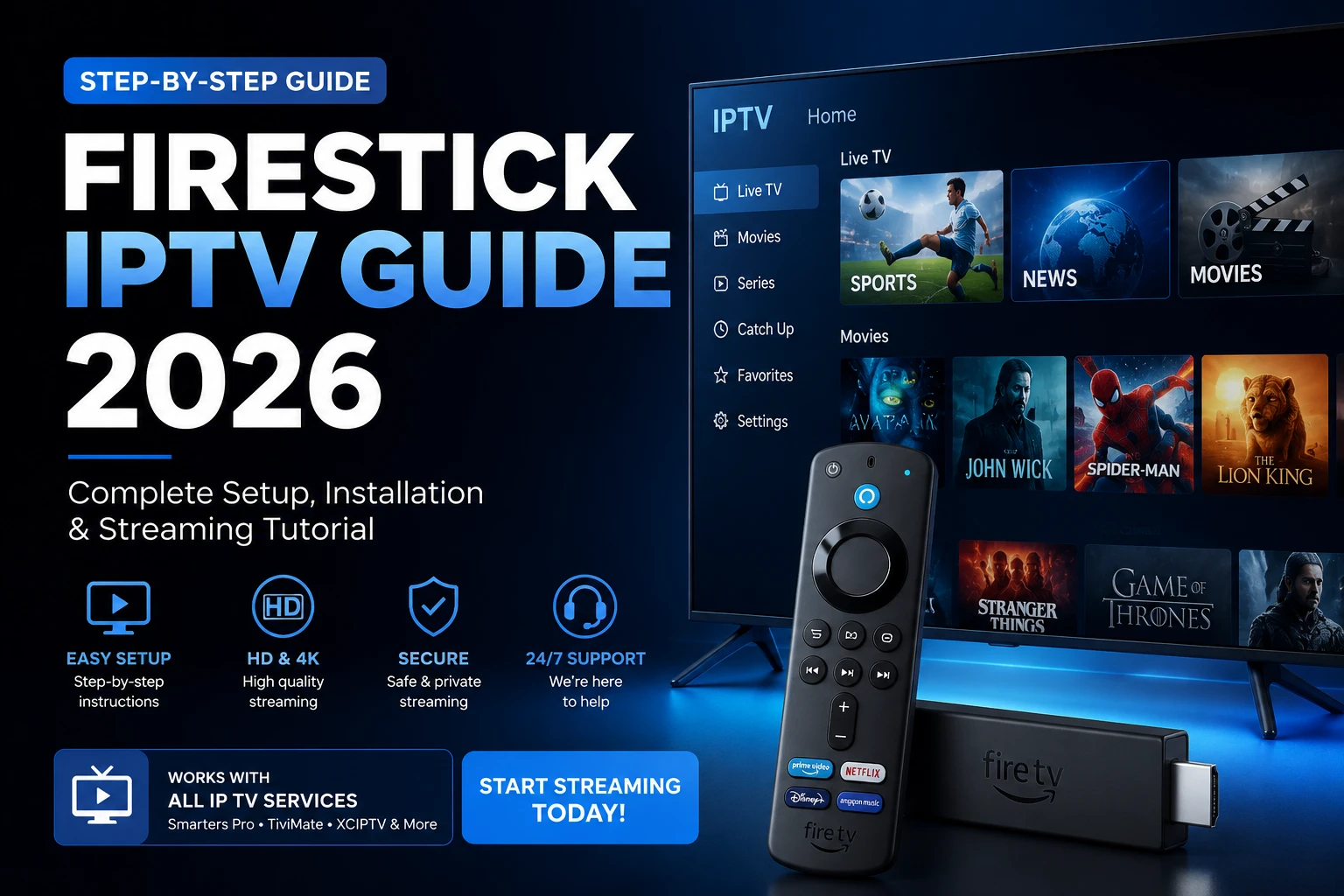
Prerequisite Step: Unlocking the Firestick Environment
Before you can install any media player, you must enable the hidden developer options that allow your Firestick to accept applications from outside the Amazon Appstore. This is a one-time setup that takes less than two minutes.
Enabling Developer Options
Navigate to Settings > My Fire TV > About. Scroll down toDevice Name or Build and click it seven times rapidly. You will see a notification that says “You are now a developer.” This unlocks the hidden Developer Options menu on your device. This step is identical across Fire Stick, Fire TV Cube, and Fire TV Edition models.
Activating Apps from Unknown Sources
Go back to Settings > My Fire TV > Developer Options. You will now see a new menu. Select Apps from Unknown Sources and turn itON. This permission allows your Firestick to install application packages (APK files) downloaded from outside the Amazon ecosystem. Without this step, sideloading is impossible. Once enabled, you are ready to install the Downloader app and begin the installation process.
The Sideloading Procedure via Downloader App
The most reliable method to sideload apks on fire tv is through the official Downloader app available in the Amazon Appstore. It acts as a lightweight web browser and file manager specifically designed for installing external packages.
- Install the Downloader app: From the Firestick home screen, go to the Find menu and search for “Downloader.” Select the app published by AFTVnews LLC and install it.
- Configure Downloader settings: Open the app and navigate to its settings menu. Enable “JavaScript” and disable “Block Ads.” This ensures download pages load correctly.
- Enter your media player shortcode:In the Downloader URL field, enter the direct download link or shortcode for your chosen player. Many providers offer short, easy-to-type codes (e.g., 12345) that resolve to the APK download. The app will download the file and prompt you to install it.
- Install and delete: After the download completes, select “Install” and follow the on-screen prompts. Once installed, choose “Delete” to remove the APK file and free up storage space.
This process works for virtually any Android application package. Bookmark thedownload media player shortcodes provided by your IPTV source for quick future access.
Top Firestick Media Application Recommendations
Not all media players perform equally on Firestick hardware. The device's processor and memory constraints demand optimized applications. Here are the three best performers.
TiviMate Premium
TiviMate is widely considered the gold standard for IPTV on Firestick. Its interface mimics the traditional cable TV grid with a clean, responsive layout that is optimized for remote control navigation. It excels at rapid M3U database indexing and offers customizable channel grouping, catch-up TV support, and an integrated EPG that maps directly to your playlist. The premium version adds multi-playlist support, which is essential for users who maintain multiple subscriptions or backup sources.
IPTV Smarters Pro
IPTV Smarters Pro is the industry standard for good reason. It supports Xtream Codes API integration, which means you can log in with a username and password rather than uploading an M3U file. The interface is intuitive for non-technical users while still offering advanced features like internal video player switching, parental controls, and multi-screen viewing. It performs reliably on Firestick hardware when the buffer size is configured correctly.
XCIPTV Player
XCIPTV Player distinguishes itself with a built-in dual-player architecture that can switch between ExoPlayer and VLC-based rendering engines on the fly. This prevents stream decoding errors when a channel uses an incompatible codec. It also includes a dedicated Vod/Catch-up section and supports dynamic EPG loading. For Firestick users who encounter the occasional “this channel cannot be played” error, XCIPTV is often the fix.
Optimizing Firestick Hardware to Stop Buffering
The Firestick's compact size means limited internal hardware resources. Without proper optimization, even the best media player will struggle. Use these developer-level tuning tips to fix firestick streaming lag permanently.
- Clear device cache regularly: Go to Settings > Applications > Manage Installed Applications. Select your IPTV player and choose “Clear cache.” Repeat monthly. The Firestick's limited storage fills quickly with temporary data, and clearing it restores performance.
- Manage background app processes: Go to Settings > Applications > Manage Installed Applications and force-stop any apps you are not actively using. Background processes consume RAM that your IPTV player needs for smooth playback.
- Use an official OTG Ethernet adapter: Wi-Fi on the Firestick is adequate for casual use but introduces latency and signal instability for live television. An official Amazon OTG (On-The-Go) Ethernet adapter connects your Firestick directly to your router with a wired signal, eliminating wireless variables entirely.
- Optimize player buffer duration: Inside your media player settings, increase the buffer size to at least 2-3 seconds. In TiviMate, go to Settings > Playback > Buffer Size and set it to 2 seconds. In IPTV Smarters Pro, navigate to Settings > Player Settings > Buffer Size and select 3 seconds. This gives the player a cushion for minor network fluctuations.
The Strategic Call-to-Action
You have unlocked your Firestick, installed the best media player, and optimized every hardware setting. But elite hardware optimization is completely wasted without a premium, hyper-stable stream source powering the content.
Our premium subscription packages are the absolute standard in Firestick media delivery. We offer lightning-fast Xtream Codes syncing, full Electronic Program Guide (EPG) mapping across all 20,000+ live channels, and advanced anti-freeze server networks that eliminate buffering even during peak hours. Your Firestick deserves a source that matches its potential. Browse our subscription plans and product catalog to find the perfect match.
Power Your Firestick with Premium IPTV
Your Firestick is ready. Complete the setup with a high-performance, ultra-stable IPTV feed. Browse our plans and start streaming at full potential.
Key Takeaways
- Unlock your Firestick by enabling Developer Options (click Build 7 times) and activating Apps from Unknown Sources before attempting to sideload any media player
- Use the Downloader app from the Amazon Appstore to safely sideload apks on fire tv via shortcodes or direct URLs
- TiviMate Premium, IPTV Smarters Pro, and XCIPTV Player are the top performers on Firestick hardware, each with specific strengths for different user preferences
- Optimize Firestick performance by clearing cache, managing background processes, using an OTG Ethernet adapter, and increasing player buffer duration to 2-3 seconds tofix firestick streaming lag
- Hardware optimization requires a premium stream source — our subscriptions deliver Xtream Codes sync, full EPG mapping, and anti-freeze servers for the ultimatepremium live tv m3u playlist experience. Browse plansor visit our products page
Related Articles
Optimize IPTV on Android TV and Firestick
Advanced optimization tips specifically for Android TV and Fire OS devices.
How to Fix IPTV Buffering: Tips and Tricks
Comprehensive buffering troubleshooting guide for all streaming devices.
Anti-Freeze Technology: Stable Streaming
The engineering behind our buffer-free streaming infrastructure.