
How to Use IPTV on Multiple Devices Simultaneously: The Multi-Room Guide
August 8, 2026•13 min read
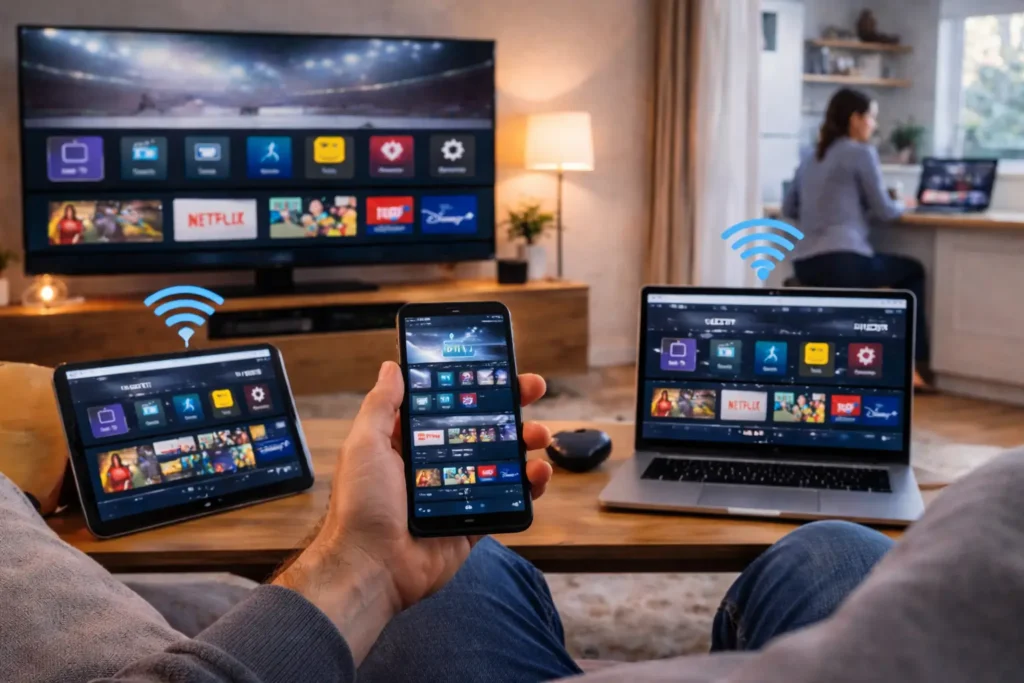
The single most common household friction point in modern cord-cutting is not channel selection, picture quality, or price — it is screen conflict. One family member wants the live Premier League match on the living room television. Another wants to stream the latest blockbuster in the bedroom. Someone else is catching up on a news broadcast from a tablet in the kitchen. With a standard single-connection IPTV subscription, only one of these people can watch at any given moment.
This is the problem that IPTV multiple devices support solves. A properly configured multi-room ecosystem allows every member of your household to watch their chosen channel simultaneously on their preferred screen — without stream collisions, connection bans, or quality degradation. This guide explains exactly how to set up multi-room streaming connections that work, the infrastructure requirements to support them, and how to select a subscription that enables true concurrent viewing.
The Golden Rule of Multi-Device Streaming (Avoiding the Ban)
Before discussing setup methods, it is essential to understand how IPTV server security works. Every subscription line — whether delivered as a raw M3U URL or through an Xtream Codes API profile — is provisioned with a specific number of active connection slots. A standard entry-level subscription typically includes one slot: one device, one stream, at any given time.
When the same line is used on two devices simultaneously, the server detects duplicate authentication tokens originating from different IP addresses or media player sessions concurrently. This triggers an automated security protocol. Depending on the provider, the response ranges from a temporary stream kill (one of the two devices is forcefully disconnected) to a full account suspension for suspected credential sharing. The goal is to avoid account suspension limits by understanding precisely what your subscription allows.
The critical distinction is that this is not arbitrary provider policy — it is a technical necessity. Each stream consumes transcoding capacity, egress bandwidth, and server thread allocation on the upstream infrastructure. A single-connection line is priced according to those resource costs. Using it on two devices effectively steals a second allocation the provider did not provision, which degrades service quality for all users on that server node.
The solution is not to circumvent the limit — it is to purchase a plan that matches your household's actual concurrent usage. Premium providers offer transparent connection tiers: 1-connection, 2-connection, 3-connection, and sometimes unlimited-connection packages. When you see a provider advertisingsimultaneous live TV screens as a numbered feature rather than a hidden restriction, you are dealing with an operator that builds infrastructure around real-world usage patterns.
Methods to Establish a Flawless Multi-Room Ecosystem
1. Purchasing Dedicated Multi-Connection Subscriptions
This is the only reliable method. A premium multi-device M3U package provisions your account with multiple concurrent connection slots at the server level. When you log in from the living room Firestick and the bedroom Smart TV simultaneously, the Xtream Codes API validates both sessions independently against your account's connection allowance. Both streams remain active, both devices maintain full channel access, and neither triggers a security flag.
The practical setup is identical to a single-device subscription: you receive the same server URL, username, and password credentials. The difference is entirely server-side — the API simply permits more simultaneous authenticated sessions. This means you can configure every device in your home with the same login details, and each one will work concurrently up to your plan's connection cap.
When evaluating providers, look for explicit connection-count transparency. Avoid services that use vague language like "unlimited devices" without specifying concurrent stream limits — this often means the line can be installed on many devices but only one can play at a time. A genuine multi-connection plan clearly states "2 simultaneous connections" or "4 concurrent streams" in its feature list.
2. Local Network Playlist Management
For power users who prefer to control distribution at the network level, a local playlist management approach offers additional flexibility. This involves running a middleware server on your local network — typically on a Raspberry Pi, an old laptop running Docker, or a dedicated home server — that acts as a proxy between your upstream provider and your household devices.
Applications like xTeVe, PseudoTV, or Threadfin ingest your provider's M3U or Xtream Codes credentials and re-serve them as a local playlist on your home network. This allows you to:
- Apply per-device stream limits to ensure fair bandwidth distribution across rooms.
- Filter channel lists per device (e.g., only sports channels on the living room TV, only children's content on the tablet).
- Integrate IPTV channels into a unified Plex or Jellyfin media server interface that all household members access with their own user profiles.
Note that this method does not bypass provider connection limits — you still need a multi-connection subscription at the upstream level. The local middleware simply adds organisational and performance optimisation layers on top of it.
3. Cross-Platform Synchronization
A multi-room setup inevitably spans different operating systems and device form factors. Ensuring a consistent viewing experience across a Firestick (Fire OS), a Samsung or LG Smart TV (Tizen/webOS), and an iOS or Android phone requires a unified approach to configuration:
- Use a compatible media player on every platform: TiviMate (Android/Fire TV), IPTV Smarters (all platforms including iOS and Samsung/LG), and GSE Smart IPTV (iOS) all support Xtream Codes API login. Using the same player ecosystem simplifies credential management and EPG synchronization.
- Centralize your EPG source: Configure all devices to pull programme guide data from the same XMLTV URL provided by your subscription. This ensures that schedule information, programme descriptions, and channel ordering are identical across every screen.
- Enable cloud backup where available: TiviMate offers a cloud backup feature that saves your channel groups, favourites, and playback settings. You can restore the same layout to every Android-based device in seconds.

Bandwidth Infrastructure Requirements for Multi-Screen Streaming
A multi-device IPTV setup is only as good as the home network that supports it. Regardless of how many connection slots your subscription provides, if your internet connection and local network topology cannot handle the aggregate data load, every stream will buffer and degrade simultaneously.
Calculating Your Bandwidth Budget
Video streaming bandwidth requirements are predictable and additive. Here are the realistic per-stream consumption figures for IPTV:
- SD channel (480p): ~3–5 Mbps
- HD channel (720p–1080p): ~8–15 Mbps
- FHD channel (1080p 60 FPS): ~15–25 Mbps
- 4K channel (2160p): ~25–50 Mbps
To calculate your household's minimum required internet speed, add the highest expected concurrent streams together. A realistic three-screen scenario — one 4K stream in the living room, one HD stream in the bedroom, and one HD stream on a tablet — demands a baseline of 25 + 15 + 15 = 55 Mbps. Adding a 25% headroom buffer for network overhead and background traffic brings the recommendation to 70–80 Mbps as a minimum stable connection.
Wi-Fi vs. Ethernet: What Matters for Multi-Room
Wireless interference is the most common bottleneck in multi-room IPTV deployments. A single dual-band router located in a corner of the house will struggle to maintain stable throughput to three concurrent streaming devices spread across different rooms. Follow these network architecture guidelines:
- Prioritise wired connections for stationary devices. Smart TVs, streaming boxes, and game consoles located near the router should be connected via Cat6 Ethernet. Wired connections eliminate Wi-Fi congestion, reduce latency by 2–5 ms, and guarantee full bandwidth to every connected device.
- Use 5 GHz Wi-Fi for wireless devices. The 5 GHz band offers significantly higher throughput and less interference than 2.4 GHz. Ensure your router supports simultaneous dual-band operation and that every wireless streaming device is connected to the 5 GHz SSID.
- Consider a mesh Wi-Fi system for larger homes. A mesh network with dedicated wireless backhaul (tri-band) ensures that devices in distant rooms receive adequate signal strength without dropping to 2.4 GHz fallback speeds.
Quality of Service (QoS) Configuration
If your household also runs video calls, online gaming, or large downloads alongside IPTV streams, configure QoS rules on your router to prioritise streaming traffic. Assign highest priority to the MAC addresses or IP addresses of your IPTV devices. This ensures that a sudden large download does not starve your living room stream of bandwidth mid-match.
Power Your Whole Home with Premium Multi-Connection IPTV
Our premium multi-device M3U package options include dedicated 2-connection, 3-connection, and 4-connection plans engineered for modern households. Every plan includes tier-1 anti-freeze server routing that handles multi-screen loads without buffering drops, native Xtream Codes API authentication, and full cross-platform compatibility across Firestick, Smart TV, iOS, Android, and web browsers. Stop the screen conflict — one subscription, every room, everyone happy.
Common Multi-Room Pitfalls and How to Avoid Them
- Using VPNs on multiple devices simultaneously: If you route IPTV traffic through a VPN, ensure all devices connect to the same VPN server location. Different server endpoints result in different egress IP addresses, which some provider security systems interpret as credential sharing.
- Exceeding your connection cap during peak hours: Even with a 3-connection plan, remember that 4K streams consume significantly more server resources than SD streams. If three 4K channels are running simultaneously, you may hit not just the connection limit but also the bandwidth ceiling of your home network.
- Neglecting to log out of unused sessions: Some IPTV apps remain active in the background after you exit. If you switch between devices frequently, use the "Disconnect" or "Logout" option in the player settings to free up connection slots for active viewers.
Key Takeaways
- IPTV multiple devices requires a subscription with dedicated concurrent connection slots — sharing a single-connection line triggers security blocks.
- Calculate your household bandwidth needs using the additive formula: sum the peak bitrate of each concurrent stream plus 25% overhead.
- Wired Ethernet delivers the most reliable multi-room experience; 5 GHz Wi-Fi is acceptable for wireless devices; mesh networks help larger homes.
- Cross-platform configuration is straightforward when you standardise on a compatible media player ecosystem and centralise your EPG source.
- A premium multi-device M3U package from an infrastructure-focused provider eliminates the technical headaches of multi-room streaming entirely.
Ready to give every screen in your home its own live stream? Explore our multi-connection subscription plans at [/products](/) and discover IPTV engineered for the way your family actually watches television. No more fighting over the remote.
Related Articles
The Top 5 Features of a Premium IPTV Service: What to Look For
Discover the essential criteria that define elite-grade IPTV delivery for your whole home.
How to Fix IPTV Audio Sync Issues: Fast Troubleshooting Tips
Keep every screen in your multi-room setup perfectly synchronised.
Understanding IPTV Protocols: M3U vs Xtream Codes API Explained
How stream delivery protocols affect your ability to manage multi-device connections.
How to Become an IPTV Reseller: The Complete Guide
Interested in reselling multi-connection plans? Start your white-label streaming business.